
Object details
Object details — master data
Name, object ID, category and type, address, plan/floor plan, and links on the object.
Object details hold an object’s master data — the foundation for search, protocols, and quick access on site.
Open and edit
- Open Objects and select the object
- View fields under Details, or tap Edit to change them
- Save with Done
The same fields appear when creating a new object.
Name (required)
The name is the visible label of the object — e.g. Apartment 1 or BMW 320d. It is used in the object list, search, and the protocol.
You can optionally add a description as Markdown text (e.g. usage notes or special characteristics).
Object ID
The object ID is a free-form identifier — e.g. your internal reference number or the content of a QR or barcode.
- While editing, you can scan an existing code and store it as the object ID
- On the Objects page (scan icon), you can read a code to find the matching object quickly
- The object ID appears in the protocol when it is set
Object category and type
Category and type classify the object — e.g. Real estate → Apartment or Vehicle → Car. They influence:
- filters on the objects page
- defaults for checklists, texts, and links (via Object types)
Address
Link the object to an address from your address book, or create a new address directly. The address is shown in the object list, search, and protocol.
Plan, floor plan, attachments
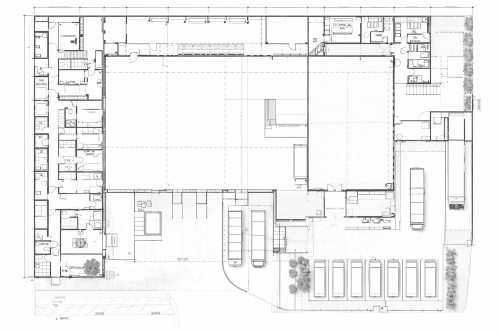
Under Plan, floor plan, attachments you store permanent images on the object — typically floor plans, site plans, or plant photos.
- Images can be annotated with arrows and text
- Annotations are useful for placing sectors, meters, defects, and similar items on the plan
- These images are object master data and appear in the protocol — not for ongoing condition documentation (use the protocol feature for that)
Links and documents
Under Links and documents you assign static links to the object — e.g. house rules, privacy notices, or PDF documents.
Links are created under Settings → Master data → Links and documents and can be assigned per object or as defaults per object type. See Links and documents.